Showing posts with label 1995 Computer. Show all posts

Sunday, February 15, 2015

Gateway 2000 P5-100: Final system tweaks

Video and sound drivers

To finish up the install of all the operating systems, the video and sound drivers for the Gateway P5-100 must be installed . For Windows 95 and 98, an automatic install was made and this is not necessary.

The video and sound drivers were re-installed in Windows 3.1 as previously shown in an earlier blog entry.  Video is here and sound is here.

Installing the required drivers for the MS-DOS 6.22 partition has not been complete. I have found that the same sound driver install disk for Windows 3.1 can be used to install the DOS only drivers quite easily, but I have not found the appropriate DOS video drivers for the TRIO64 video card. However, this may not be a problem since the default 640x480 with 16 colors will most likely be fine for the DOS programs I plan to use on this system.

Optimizing MS-DOS memory

The common problem running old DOS programs from the early '80s is memory errors. MS-DOS-based programs require a certain amount of conventional memory to run, even when you run them in Windows. If you attempt to run an MS-DOS-based program that requires more conventional memory than is currently available on your computer, the program may not run correctly or at all, and an error message indicating that there is insufficient memory to run the program may be displayed. When this occurs, you must reconfigure your computer so that more conventional memory is available.

In order to solve this, some changes need to be made in the autoexec.bat and config.sys files. Adding the following lines to the existing autoexec.bat file (or modifying the appropriate line) is necessary:


LH c:\dos\smartdrv.exe
LH c:\apps\doskey.com -i
path c:\apps;c:\dos;c:\dos\net
set DIRCMD=/o:gne
set TEMP=c:\temp


Add (or modify) the following lines in the Config.sys file:

SWITCHES=/f
DEVICE=c:\dos\himem.sys /testmem:off
DEVICEHIGH=c:\dos\emm386.exe ram i=b000-b7ff
DOS=high,umb
BREAK=on
rem DEVICEHIGH=c:\dos\setver.exe

Leave all the other files intact. This will now load the older DOS programs without memory problems.

Monday, January 26, 2015

Gateway 2000 P5-100: Installing Multiple Operating Systems

Installing multiple operating systems on a vintage computer from the 1990's is not an easy task. There are major hurdles to overcome for this to be successful. The primary obstacle is getting past the requirement that requires the OS to be not only installed on the primary drive, but also the C: drive.

System Commander

One of the best solutions is to use a program that creates a multiple boot system. I believe the most successful and popular was System Commander. It was a boot manager/loader software application developed by VCOM.


System Commander had some unique features, that made intensive multi-boot users quite happy. It had a feature to keep partitions hidden, so when one OS loaded it could neither detect nor interfere with other OSs, installed on other partitions. This solved most of the problems involving primary and C: drive requirements. After installing multiple OS's, a menu at start up made it possible to choose which operating systems to boot.

I utilized this program back in the early 90's when I wanted to use Windows and OS/2. It was very successful, but I also remember how involved and cantankerous it could be. This hasn't change in my usage of it today.

System partition and boot partition

The system partition is the disk partition that contains the operating system folder, known as system root. 

The boot partition is a primary partition that contains the Master Boot Record (also called the boot loader), a piece of software responsible for booting the OS. It's located in the first sector of any hard disk or diskette that identifies how and where an operating system is located so that it can be boot (loaded) into the computer's main storage or random access memory.

System Commander replaces the master boot record with its own master boot record to control the boot up process.

Killdisk

Sometimes things go wrong. If the master boot record becomes corrupted, sometimes a re-partition and format will not solve the problem. I found that the best solution is to completely wipe the disk with a program called Killdisk.


Killdisk is powerful and compact DOS utility that allows you to destroy all data on hard and floppy drives completely, excluding any possibility of future recovery of deleted files and folders. In this case, the free version is suitable for use and can be downloaded here.

Setting up the disk drive

There are three major considerations for this system:
  1. The PC's limit of four primary partitions will not be exceeded.
  2. Each partition doesn't exceed 2GB 
  3. The active primary is located somewhere on the first 2GB of the hard disk.
This last consideration is what makes my plan difficult to achieve. I would like to install four OS's in its own primary partition, but each OS will have to be placed in the first 2GB of the hard drive. My newly installed hard drive is 10GB. So with a 2GB limitation, I'll will only be able to use 2GB of the 10GB storage.

To regain some of this space, I'll have to be creative in how I make my primary partitions. This is my breakdown: 
  • 62.6MB MS-DOS 6.22
  • 901MB Windows 3.11
  • 1GB Windows 95
  • 1.99GB Windows 98
How I managed to squeeze out the approx. 4GB total was to leave a small portion of the 2GB to make a fourth partition. This allowed enough space for the install of Windows 98. I was still allowed to max out this partition to the standard 2GB limitation. Unfortunately, making these partitions are not easy, and must be performed using System Commander and in a very precise order of installs.

I also must erase all the hard work I previously made in installing Windows 3.11 and all the required drivers.

Installing System Commander

In order to install System Commander, a boot-able partition and OS must be installed. Because of the quirks of Windows 3.11 and Windows 95, a precise series of installs must be made. The first OS must be Windows 3.11

Starting with a fresh drive, a 62.6MB primary partition was created and made active. MS-DOS and Windows 3.11 was installed.

Installing System Commander is a quick process started by a double-click on install.bat located on the single 3.5" install floppy (a copy made from the original is best since the install will write on the floppy). After a series of prompts the program will install.


After the install, a system reboot will show the boot manager on start up.


Windows 3.1 is essentially a shell of MS-DOS, so it will not be shown as such on the menu. Striking the ENTER key on the MS-DOS 6.22 selection will boot back into Windows 3.1.

Creating more partitions

In order to install another OS, the SCDISK Utility must be used. This can be found in the SC\ folder.
This utility will allow the boot manager to "hide" the C:\ primary OS and create a new partition which is bootable and ready for another OS install.

Run the SCDISK Utility and choose Change boot status for OS install from the menu. The next screen will look like this:


Another odd quirk of System Commander... MS-DOS 6.22 is listed here as 5.0. Ignore this and select Partition 1. ESC to exit.

The next screen will warn that the bootable status has changed. Be careful not to select OK. A reboot from this screen is necessary for this to work. Either press CTL-ALT-DEL or press a reboot button on the PC.

Now a new partition can be made (in this case a 62.6MB partition) for another OS install. This partition I plan to have only MS-DOS 6.22 installed.

This needs to be repeated two more times for Windows 95 and Windows 98 to be installed. Unfortunately, the only way to do this is to install MS-DOS 6.22 and copy the Windows 3.1 files from the first OS partition install to these locations. An UPGRADE version of Windows 95 and 98 must be installed over Windows 3.1.

This is quite a bit of work, but it insures a clean copy of all OS's without Windows trying to rewrite files in any other partition. However, after each Windows 95 and 98 install, the boot manager will disappear. Only by reinstalling System Commander, will the boot manager be restored. During this re-install, System Commander will alert that a potential virus has attacked the boot manager. This is because Windows 95 and 98 has re-written on the boot record. 


After all the OS's have been installed, and the boot manager restored, the startup menu should show four OS options and a drive A: boot option.


Editing the Boot Manager menu

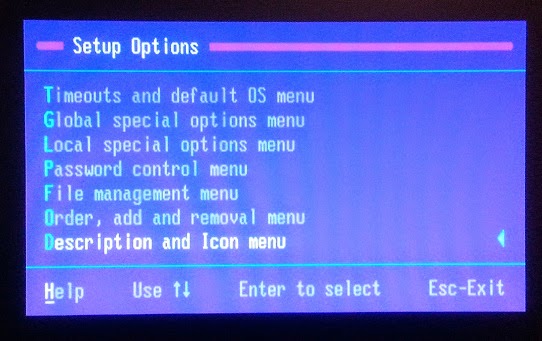
It's easy to edit the boot manager. On startup, Press the S key. This will bring up the Setup Options menu.


Choose D for the Description and Icon menu.


Re-naming and choosing the appropriate icons can be made here. After this editing, the startup boot manager (in this case) appears like this:


Each OS boots as a primary C:\ drive with the other partitions accessible as multiple letter drives.


Tuesday, January 6, 2015

Gateway 2000 P5-100: Installing Video Drivers

Windows 3.1 installed with a generic  640 x 480, 16 color VGA driver.

There was an option during the install process to install a driver from an OEM disk, but I did not chose to do this. Now, I would like to have my monitor display 640 x 480, 256 colors, but none of the supplied video drivers that come with Windows 3.1 will work.

The only way I'll know which video driver to locate will be to first identify the video card.


The Gateway P5-100 came with a S3 Trio64 video card made by STB Systems.

The S3 Trio range were popular video cards for personal computers and were S3's first fully integrated graphics accelerators. As the name implies, three previously separate components were now included in the same ASIC: the graphics core, RAMDAC and clock generator. The increased integration allowed a graphics card to be simpler than before and thus cheaper to produce.

Finding the driver for this card was not easy, but accomplished. I was able to find it here. It's a generic S3 driver for Windows 3.1.


Installing the video driver


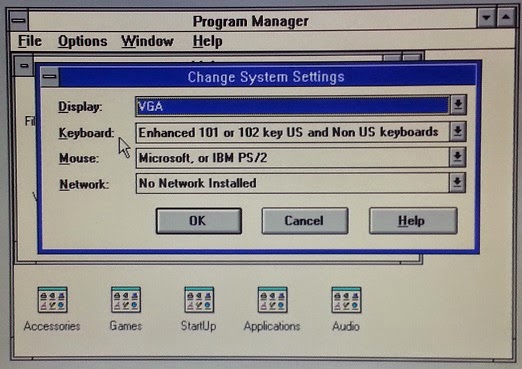
The driver is contained in the  zipfile, w3117004.zip. By copying the contents to a disk, the driver can be accessed by going to Windows Setup in Main. Selecting Options and then Change system Settings...


By scrolling through the list of drivers, at the bottom choose Other Display (Requires disk from OEM)...   

Select the A:\ with the floppy that contains the video driver files. There should be a list displayed of video driver options. I chose the S3 Trio64/32 1.70.04 640x480 256 C driver.


The driver will install and then stop and prompt for the S3 Flat Model Driver Disk. I don't know what this is, so I ignored it and selected Cancel.


This produced a warning screen that stated that the install was incomplete. I exited the window by selecting OK.


I went back to the Change System Settings window and located the newly installed video driver S3 Trio64/32 1.70.04 640x480 256 C that is now in the list of available drivers.


When it's selected, a new window will inform that the driver is already installed. I chose to keep the current driver.


Windows then prompts for a system re-boot for the changes to take place.


The video driver works great and the system now operates at 256 color on a 640x480 screen.


Sunday, January 4, 2015

Gateway 2000 P5-100: Installing Windows 3.1

My plan is to use a program that will allow different operating systems to be installed on one hard drive by using four primary partitions. I discovered it's best to start with my Windows 3.1 install.

Windows 3.1 was originally released on April 6, 1992; official support for Windows 3.1 ended on December 31, 2001, and OEM licensing for Windows for Workgroups 3.11 on embedded systems continued to be available until November 1, 2008.

Installation is simple. I have a six 1.44 MB floppy disks which makes the install. By running setup.exe from the DOS Shell the welcome screen will appear with directions. It will prompt you through a few screens in which I chose Express Setup. This will automatically configure the recommended settings for most users.


Once Windows is installed the desktop looks as follows:


The Program Manager is basically a shell program running on top of DOS 6.22. It's very much similar to the DOS Shell that I installed earlier. It's a MS-DOS graphical-shell-turned-operating-system.

Like modern Windows operating systems, Windows 3.1 has a bundle of tools and applications. The necessary apps for tweaking the system are located in Main. This holds the File Manager. It's a hierarchal file system stucture that allows easy access to all folders, sub-folder and files.

This can be seen in the following image:


The Main window also holds the Control Panel. This has various tools for changing the desktop appearance or making adjustments to various components of the system. The window can be seen here:


There are installed applications available in the Accessories window. Such as Write and Paintbrush. Paintbrush is still in use today (obviously upgraded) and I'm using my Windows 7 version now to re-size and crop these images. The Accessories window can be seen in the following image:


Re-installing the sound card drivers

Everything works well with the install, but there isn't sound. When I installed the sound driver for the Sound Blaster, I chose only a DOS install. In order for the sound to work in Windows 3.1, the install disks must be run again. This time when prompted, I chose to install the drivers in the Windows folder.

After this install, a new Audio folder appears in the Program Manager with some useful tools. These can be seen in the following image:


The most important tool for me is the Mixer Control. This is where the sound level can be set and by going into Options in the menu and choosing Save Settings On Exit, the start-up chime (the default tada in this case) will remain at the level chosen.


Saturday, January 3, 2015

Gateway 2000 P5-100: Installing RAM Memory

The Gateway system has four 2MB modules installed in slots 0 and 1 making a total of 8MB available.

I've decided to increase the RAM to 32MB. Most applications will be fine running with 4MB in Windows 3.1 and 8MB will suffice for Windows 95, but I'd rather have more than enough since the modules are inexpensive in today's market.


I'm going to be removing all the old RAM modules and replacing them with 32MB (2X16MB) EDO NON-PARITY 60NS SIMM 72-PIN 5V 4X32. This is what they look like:


The following is some basic information about RAM from Wikipedia and other online sources that is pertinent to this machine :

What exactly is RAM?


Random-access memory (RAM) is a form of computer data storage. A random-access memory device allows data items to be read and written in roughly the same amount of time regardless of the order in which data items are accessed. In contrast, with other direct-access data storage media such as hard disks, CD-RWs, DVD-RWs and the older drum memory, the time required to read and write data items varies significantly depending on their physical locations on the recording medium, due to mechanical limitations such as media rotation speeds and arm movement delays.

The main memory (the "RAM") in personal computers is dynamic RAM (DRAM). It is the RAM in desktops, laptops and workstation computers as well as some of the RAM of video game consoles.

The advantage of DRAM is its structural simplicity: only one transistor and a capacitor are required per bit, compared to four or six transistors in SRAM. This allows DRAM to reach very high densities. Unlike flash memory, DRAM is volatile memory (vs. non-volatile memory), since it loses its data quickly when power is removed. The transistors and capacitors used are extremely small; billions can fit on a single memory chip.

What is EDO?


These RAM modules are EDO DRAM, sometimes referred to as Hyper Page Mode enabled DRAM, is similar to Fast Page Mode DRAM with the additional feature that a new access cycle can be started while keeping the data output of the previous cycle active. This allows a certain amount of overlap in operation (pipelining), allowing somewhat improved performance. It was 5% faster than FPM DRAM, which it began to replace in 1995, when Intel introduced the 430FX chipset that supported EDO DRAM.

What is non-parity?


RAM parity checking is the storing of a redundant parity bit representing the parity (odd or even) of a small amount of computer data (typically one byte) stored in random access memory, and the subsequent comparison of the stored and the computed parity to detect whether a data error has occurred.

The parity bit was originally stored in additional individual memory chips; with the introduction of plug-in DIMM, SIMM, etc. modules, they became available in non-parity and parity (with an extra bit per byte, storing 9 bits for every 8 bits of actual data) versions.

Early computers sometimes required the use of parity RAM, and parity-checking could not be disabled. A parity error typically caused the machine to halt, with loss of unsaved data; this is usually a better option than saving corrupt data. Logic parity RAM, also known as fake parity RAM, is non-parity RAM that can be used in computers that require parity RAM. Logic parity RAM recalculates an always-valid parity bit each time a byte is read from memory, instead of storing the parity bit when the memory is written to; the calculated parity bit, which will not reveal if the data has been corrupted (hence the name "fake parity"), is presented to the parity-checking logic. It is a means of using cheaper 8-bit RAM in a system designed to use only 9-bit parity RAM.

What is 60NS?


RAM speed is measured in ns (nano seconds). The fewer ns, the faster is the RAM. Years ago, RAM came in 120, 100 and 80 ns. Today, we are talking about 60 ns and faster.

What is a SIMM?


A SIMM, or single in-line memory module, is a type of memory module containing random-access memory used in computers from the early 1980s to the late 1990s. It differs from a dual in-line memory module (DIMM), the most predominant form of memory module today, in that the contacts on a SIMM are redundant on both sides of the module.


Installing the RAM


These two modules will go into slot 0 leaving slot 1 empty. The old ones are removed by pulling the lock down pins on either side out and then pulling the RAM module up and out.


The new ones are easily installed by angling the RAM module into the socket and then pressing down and tilting the module straight. You'll know when it is firmly installed when the retaining clips on either side snap into place.


The direction of the module as it's installed in the socket is important. If it doesn't want to seat in correctly, then it needs to be flipped around. In the following image, you can see how the notch is off center:


After installation, the computer should boot up with the additional memory. The new amount (32768 KB) is now available and it's verified on start up as seen in the following image: 


.
Checking the BIOS, the RAM is detected in Slot 0 and is labeled as Fast Page Mode.


Thursday, January 1, 2015

Gateway 2000 P5-100: Installing the Sound Card Driver

Sound cards and intstalling their drivers on early computers was generally not an easy task. There were many different hardware configurations and software incompatibilities. Sound cards didn't become common until the late 80's and became more user friendly as time passed. Once the sound cards supported Windows Plug and Play, they became easier to install.

My Gateway 2000 came with an installed Sound Blaster ViBRA 16.


The Sound Blaster ViBRA 16 was released as a cost-reduced, more integrated Sound Blaster 16 that supported Plug and Play for Microsoft Windows operating systems. It lacked separate bass and treble control, an ASP/CSP socket and Wave Blaster connector. Several different revisions of the VIBRA chipset exist.

This one is the earliest model, which featured an external Yamaha YMF262 OPL-3 synthesis chip.


This Yamaha chip was replaced on later ViBRA-equipped sound cards with a cost-reduced replacement termed CQM synthesis, which largely emulated the features of the Yamaha OPL-3 chip. However, its emulation of OPL-3 was far from perfect, causing considerable distortion in FM-generated music and sound effects.

Installing the driver


I was able to find a two disk install for this driver at Vogons Vintage Drivers Library. A compressed folder contains two disk images that require 720K formatted disks.

To make the install disks, I first had to format two disks using the following DOS command:

FORMAT A: /N:9 /T:80

This command will format a 720k disk in a 1.44mb floppy drive. /N:xx specifies the number of sectors per track.  /T:xx specifies the number of tracks.

Once I had the 720k floppy disks at hand, I used WinImage to make the install disks.

Installing the software was simple. I accepted all of the software's recommended settings. In the following two screenshots, the settings can be reviewed:


Included with the install is a diagnostic utility which searches for any conflicts in the install.


The utility also allows for audible testing of both wave and midi sound. Everything sounds great with this install and I have to admit, I'm amazed at how easy this install progressed. I was actually expecting complications due to my memory of headaches when installing sound cards in the early 90's.


Tuesday, December 30, 2014

Gateway 2000 P5-100: Installing MS-DOS and Drivers

Initially, I'll be installing MS-DOS 6.22 on the largest partition that's allowable. In this case, the MS-DOS file allocation table (FAT) file system can support only 2 GB partitions.

The 2-GB partition limit is imposed by the maximum number of clusters and the largest cluster size supported by the FAT file system. The FAT file system is limited to 65,525 clusters. The size of a cluster must be a power of 2 and less than 65,536 bytes--this results in a maximum cluster size of 32,768 bytes (32K). Multiplying the maximum number of clusters (65,525) by the maximum cluster size (32,768) equals 2 GB. This is commonly known as the FAT16 file system.

My hard drive has a total capacity of 10 GB, but because of the limitations of my computer's BIOS, I'll only be able to utilize 8 GB. This 8GB limit only applies because of a longtime standard BIOS function. In order to access bigger drives, some extensions were added to them (the so-called INT13h-extensions, INT 13h are the functions to access the disk drive via BIOS). Operating systems not aware of these extensions like MS-DOS 6 are still limited to the lower 8 GB even with a new BIOS.

My plan is to use special software to make four primary partitions. Each 2 GB partition will have a different OS.


Installing MS-DOS 6.22


My new hard drive was shipped fresh with 10 GB of unallocated space. Using MS-DOS 6.22 installation disks and by following the prompts, MS-DOS automatically created the maximum 2 GB partition and formatted it. The hard drive is then ready for the system installation.


After a successful installation, DOS SHELL was added along with the other extras supplied on the Supplemental Disk. 


Installing the mouse driver


MS-DOS 6.22 did not come with a mouse driver. Adding one is quite simple, by downloading the Microsoft mouse driver and adding the mouse.com file to the DOS directory. In order to run the driver automatically, we need to add a line to the autoexec.bat file.

I find using the Dos Shell an easier method of moving about DOS. This, of course, is with the aid of a mouse, but at the moment, the driver has not been loaded. To be able to use the mouse, we first have to load the driver. Do this, by going into the DOS directory and entering mouse. Now, the mouse is ready for use in the Dos Shell.

At the Dos Shell GUI, there is a text editor available under MAIN.


Make sure that drive C: is highlighted and not the DOS directory. Double-click on Editor and type autoexec.bat in the required popup window. This will open the file's contents in the editor. Add the line:

LH C:\DOS|MOUSE.COM 

(by mistake, I typed > instead of a period initially, but it still worked).


The LH at the beginning is used to load programs in to high memory to free up your conventional memory. There will be more about this later. 

At this time, it's also good to write one last line, simply dosshell. This will automatically load the shell at boot.


Installing the CD-ROM driver


The last essential driver is the CD-ROM driver. This is one of the more difficult drivers to install, due to different systems and CD-ROM manufacturers. I found what works most of the time is a driver that I found that installs on different systems using doscdrom.exe. 

I did a manual install by adding the file cd1.sys to my DOS directory. I then added these lines to my config.sys file:

DEVICE=C:\DOS\cd1.SYS /D:banana
LASTDRIVE=Z

I added this line to my autoexec.bat file:

MSCDEX.EXE /D:banana /L:R

The last letter in the line denotes the drive letter. After a re-boot, the dosshell appears with an operating mouse and all drives accessible.


Sunday, December 28, 2014

Gateway 2000 P5-100: Installing New Drives

I plan to use this computer for many of my vintage computing needs, so I'll have more confidence in this system if all the drives are replaced with new ones.

Starting first, the case needs to be opened. It's rather straight forward, there are seven screws on the back of the computer.


The case then slides back slightly and then can be lifted off. The drives are located in caddies where circled.


The hard drive and 1.44mb floppy are located together. It's removed by removing two screws and then by sliding out and up.


The installed Quantum Fireball 3gb drive was replaced with a HEWLETT PACKARD 10.1 GIG IDE HARD DRIVE DTLA-30510.

MS-DOS has a 8.5gb limitation. At most 1024 cylinders (numbered 0-1023), 256 heads (numbered 0-255), 63 sectors/track (numbered 1-63) for a maximum total capacity of 8455716864 bytes (8.5 GB). This is a severe limitation in regards to today's hard drive needs, but in this case, it should be sufficient.

The hard drive also needs to be recognized by the computer's BIOS. The jumpers are positioned as indicated by the chart on the drive. In this case, the drive is set up as DEVICE 0 (MASTER). It will be the primary drive.

If the jumpers are set incorrectly, the computer's BIOS may not recognize the hard drive or the computer's BIOS may not load at all, and the screen will remain dark with no activity.


The 1.44mb floppy is replaced with a NEC FD1231H 3.5 1.44MB Internal Floppy Drive. This drive can support the following formatting:

720 KB mode = 720 KB
1.44 MB mode = 1.44 MB

The CD-ROM and 5.25" floppy drive will slide into the drive caddies after the old CD-ROM and ZipDrive are removed. To get to these, the front panel must be removed. There are four screws located at the inside corners holding it in. The two on the left can be seen in the below image.


The panel cannot be removed completely because of a series of cables to the far right. There's no need to detach these cables since there is plenty of space to swing the panel aside.


By removing the screws on either side of the drives and the rear cables the component can be removed.

I'm replacing the 4x CD-ROM drive with a new Compaq 48x CD-ROM Drive CRD-8484B.

I'm replacing the ZipDrive with a new TEAC FD-55GFR 5.25" 5-1/4  FLOPPY DISK DRIVE (1.2mb). This drive connects to the same ribbon cable that the 1.44mb floppy drive (A:) by using the larger FDD connector. It will be recognized as drive (B:).


After installing all the drives, the computer was booted. The hard drive and floppy drives were detected.


Looking at the BIOS settings though, I found that Foppy B: is disabled under Floppy Options. This was corrected by choosing the proper setting.

  
At this time, only Floppy A: and B: are in operation. The hard drive needs to be formatted and the CD-ROM will need a driver.


Friday, December 26, 2014

Gateway 2000 P5-100: Setting up Dosshell

There's one more item I'd like to save from the hard drive before I replace it. This is the SOUND directory that contains (I presume) the software for the installed SoundBlaster card. The contents are too large to save on one floppy, so I would find it easier to copy the contents onto 2 floppys using a DOS Shell interface.

DOS Shell includes common features seen in other file managers such as copying, moving and renaming files as well as the ability to "launch" applications with a double-click. The shell could be run by the command "DOSSHELL".  The shell was one of the first successful attempts to create a basic graphical user interface (GUI) type file manager in DOS.

From DOS 6.0 the DOS Shell was not included with the OS, but was added on a supplemental disk.


Looking at the contents of the disk, it's easy to overlook the SETUP command because the contents scroll by so fast. One easy method of viewing a page at a time, is to type dir /p at the command prompt.

To run SETUP, the command plus the drive and directory must be entered. In my case, I had to enter 
SETUP C:\DOS 

You'll be asked if all of the utilities should be installed or only selected components. I went through the list and only chose MS-DOS Shell. Once installed, navigating back to C: drive and into the DOS directory, the shell can be launched by entering dosshell.


Next, I'm using the dosshell to format some disks. This is easily acheived by clicking on Disk Utilities (located towards the bottom screen) and following the prompts.

Copying the SOUND directory, requires selecting the C: drive and then selecting the SOUND directory. A list of it's contents can be easily scrolled through.


From here, I selected the files I wanted to load on the first floppy. Then, going to FILE in the menu, I was able to choose COPY.